February 3, 2025
Technology
Bruce Schneier - Cryptographer
The term Schneier’s law was coined by Cory Doctorow in a 2004 speech, the law is phrased as:
Any person can invent a security system so clever that she or he can’t think of how to break it.
He attributes this to Bruce Schneier, who wrote in 1998:
Anyone, from the most clueless amateur to the best cryptographer, can create an algorithm that he himself can’t break. It’s not even hard. What is hard is creating an algorithm that no one else can break, even after years of analysis.
February 3, 2025
Technology
Merging MP3 Files
I take no credit for this but this information may well be useful, it was to me!
The Question:
I have an audiobook that’s been separated into a truly stupid 560 files, and I want to combine them in one big file. There’s a million threads about this on Google and its difficult to find good information in any of them so I’m hoping for some clear help for a free way to merge .mp3 files.
The Answer:
You can do this on the command line. Navigate to a folder containing the mp3s. Right click and select Services > New Terminal at Folder. That will open a terminal window. Type cat at the prompt, followed by a space. Don’t hit enter/return. Now go back to the folder with the mp3s in Finder and open it. Get the mp3s in descending order (for example by sorting by name), and then select all of them. Drag the lot you’ve selected over to the Terminal window. Create a space after the last part of the last file name and then type > BigAudioFile.mp3, or whatever you want the single file to be called. Then hit enter. A new mp3 will be created that has combined all the mp3s.
One problem I’ve encountered:
While the newly created mp3 contains all of the individual mp3s combined together, sometimes my iPhone audiobook player will only recognize it as the first of the individual mp3 files (despite the file being much larger than just that first individual file). To address this, I use VLC to “convert” the new big mp3 to a new…big mp3. Something about running it through VLC gets my audiobook player to recognize it as the big complete mp3 that it is.
Further Question:
Thank you for this! It worked for me. One question - How did you “convert” using VLC?
Further Answer:
Go to File > Convert/Stream… . Then hit Open and select the big mp3 file you just created. Then under Choose profile select “Audio - mp3”, click Save as File, and then give it a new name and choose where to save it (add “.mp3” as a suffix). Then hit Go!. VLC will process the file and create a new mp3. For some reason, my ios audiobook player (CloudBeats) will sometimes need me to do this before it’ll treat the large mp3 as containing more than just the content in the first of the many mp3 files you concatenated using the process in terminal.
February 2, 2025
Analogue Life
 Digital Extraction
If sufficient care is taken in terms of storage conditions, physical and fire security, an analogue paper journal should remain readable and accessible for many years, possibly decades or even centuries. Richard Polt, typewriter aficionado and thinker wrote to me, “Digital journals seem like a contradiction to me - the documents are just too liable to disappear or become unreadable”. I have experienced this myself with old word processing files which I can no longer access, had those letters been written on a typewriter who knows, I may well still be able to read their contents today.
I wrote in a previous short article “A Typewritten Journal & The Atoma Notebook’’ about the system I have adopted for my journal writing, this short article takes this a step further and describes my process for extracting segments from my journal for use in the digital world. It cannot be ignored that sometimes a digital version of something written on a typewriter can be a convenience, especially if the majority of one’s writing is done on a manual typewriter, as is now the case for me.
Apart from the ability to conveniently share text, the facility to create a digital version of material from a typewritten journal may protect against loss or destruction in the event of a flood or fire. A digital version of analogue material can always be returned to a paper (though not original) version if required, if the original typewritten version has been destroyed.
Another issue I wanted to overcome is that without a complex and extensive indexing system analogue data can be difficult to access, we all remember the frustrations of the libraries of old I am sure. However, if a typewritten journal is given the OCR (Optical Character Recognition) treatment, even selectively, that journal then becomes immediately searchable and this can be invaluable.
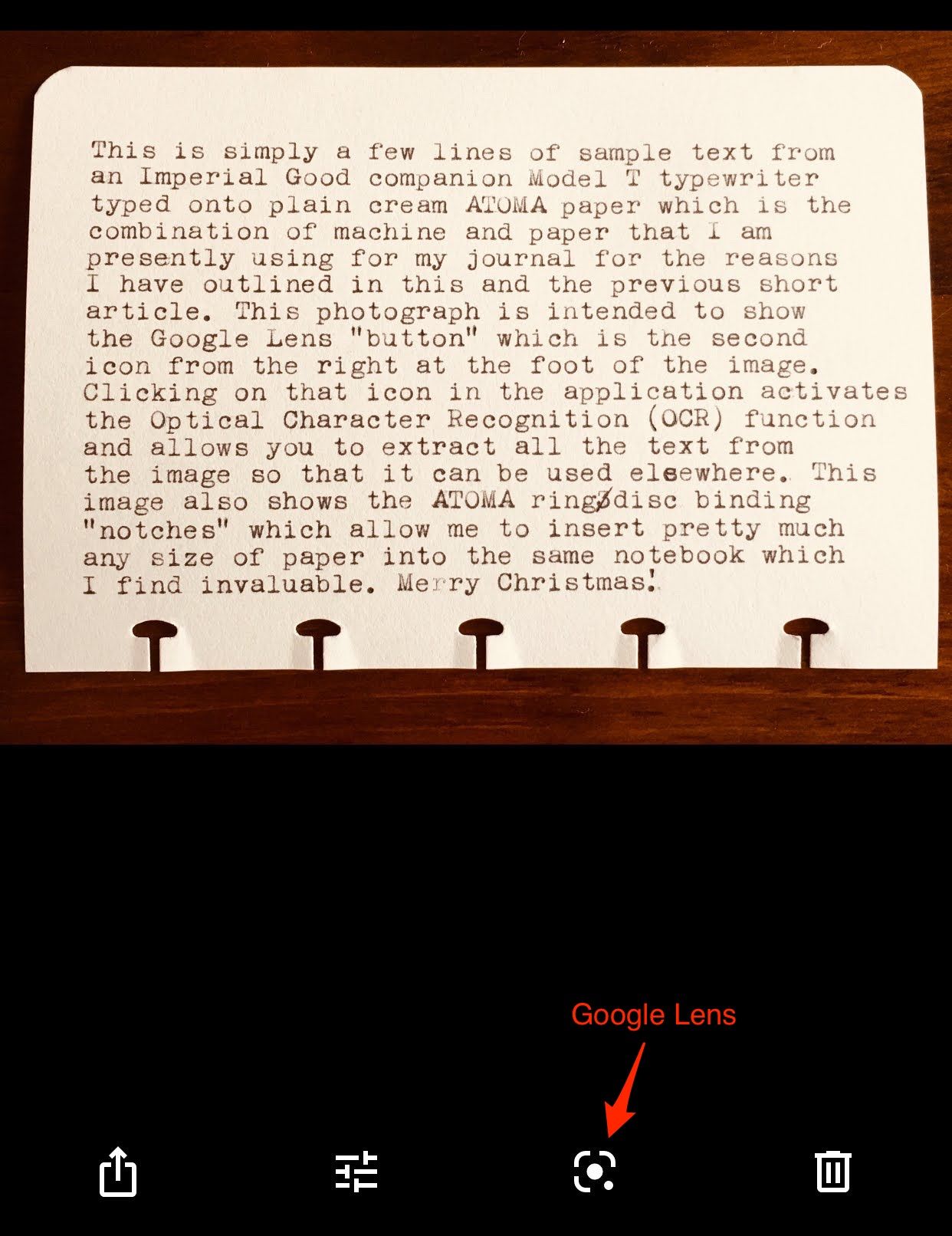
The simple method of OCR analysis I use makes use of Google Photos and Google Lens, Google Lens is built into the Google Photos application and can be used on pretty much any smartphone these days, it is available free of charge. For the purpose of extracting segments of text from my journal I find it simpler and quicker to use a smartphone rather than a dedicated scanner. Doing it this way I can capture a segment of text even whilst the paper is still in the typewriter, publish it, and then just carry on typing.
The method I use is extremely simple. I generate the typewritten text and then simply point the smartphone camera, and capture a photo. Having captured a photo I open that photo with the Google Photos application, the application will recognise the text in the image as soon as I select the Google Lens option which is available at the foot of the screen as a “square with a dot in the centre” icon, as shown in the photo above.
Once the text has been recognised the application offers the option to “select all” text, with that selected the text can be copied to the clipboard for use elsewhere by simply pasting the text into a document, social media, or whatever is required. If the user is using Google Chrome and the browser is logged in as the same user as the Google Photos application the option is presented to copy the text to a computer and if this is selected the text is immediately copied to the computer clipboard, this is the way I tend to work.
Using this process I find it is simple to quickly, conveniently and accurately extract typewritten text from my journal for use elsewhere. This process also allows me to make far more use of my typewriters to generate text because for many reasons I prefer to work this way. It also allows me to selectively digitise only some of my text so that some of it remains strictly “analogue only” and therefore impervious to hacking, theft etc.
Confidentiality is of course extremely important and is one of my primary reasons for using a typewriter. For this reason I only photograph sections of text that I intend to put into the public domain anyway, such as this short article. It is also my intention to scan, on a monthly basis, all the pages of my journal as a means of protecting them from damage or destruction, by retaining a digital version should a disaster strike. This digital version will also allow my journal to be searched for keywords which is important to me and which I cannot achieve with a handwritten or wholly analogue system.
In the end it looks as if in the future the vast majority of my writing will be done with a manual typewriter but that this will all be protected by retaining a digital version which I can search. My ATOMA notebook system is going to be the repository for pretty much everything that I generate in written form, certainly my journal, important letters etc. I will stick with messaging services and email for unimportant writing but anything that really matters or that I want to be confident I can get back to in years to come will be typewritten, on paper, with a digital version extracted as required.
Typed on an Imperial Good Companion Model T. The machine was made in Leicester, England in 1939. I have no commercial relationship with ATOMA, I simply buy their products.